
 Posted By
Bajarangi soft ,
Posted On 10-10-2020
Posted By
Bajarangi soft ,
Posted On 10-10-2020
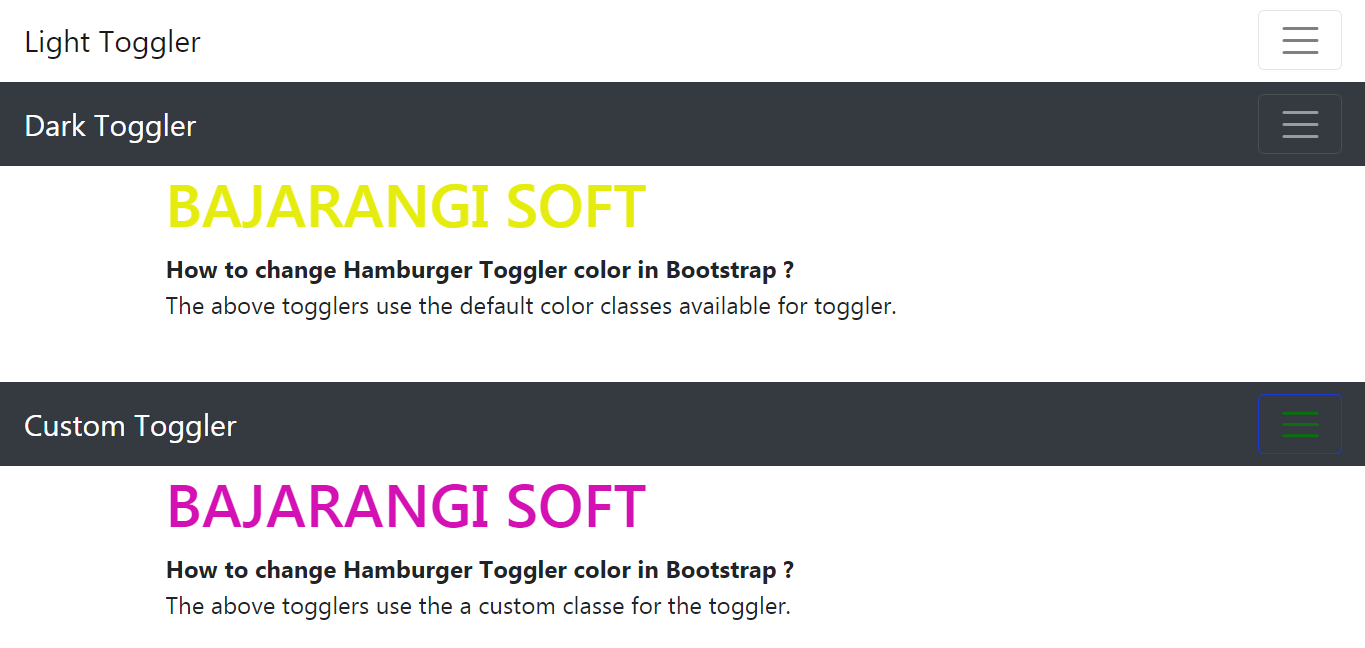
The hamburger toggler color can be changed in Bootstrap 4 using 2 methods:
Method 1: Using the inbuilt color classes
The hamburger toggler color is controlled by the two inbuilt classes used for changing the color of the content in the navigation bar:
.navbar-light: This class is used to set the color of the navigation bar content to dark. It will change the toggler icon to have darker lines.
.navbar-dark: This class is used to set the color of the navigation bar content to light. It will change the toggler icon to have white lines.
Example
<!DOCTYPE html>
<html>

<head>
    <title>
        How to change Hamburger Toggler color in Bootstrap ?
    </title>

    <!-- Include Bootstrap CSS -->
    <link rel="stylesheet" href="https://stackpath.bootstrapcdn.com/bootstrap/4.3.1/css/bootstrap.min.css">
    <script src="https://code.jquery.com/jquery-3.2.1.slim.min.js"></script>
    <script src="https://cdnjs.cloudflare.com/ajax/libs/popper.js/1.12.9/umd/popper.min.js">
    </script>
    <script src="https://maxcdn.bootstrapcdn.com/bootstrap/4.0.0/js/bootstrap.min.js">
    </script>
</head>

<body>
<nav class="navbar navbar-light bg-lignt">
    <a href="/" class="navbar-brand">
        Light Toggler
    </a>
    <button class="navbar-toggler ml-auto"
            type="button"
            data-toggle="collapse"
            data-target="#nav1">
         <span class="navbar-toggler-icon my-toggler">
      </span>
    </button>
    <div class="navbar-collapse collapse" id="nav1">
        <ul class="navbar-nav mx-auto">
            <li class="nav-item">
                <a class="nav-link"
                   href="#">Link 1</a>
            </li>
            <li class="nav-item">
                <a class="nav-link"
                   href="#">Link 2</a>
            </li>
        </ul>
    </div>
</nav>
<nav class="navbar navbar-dark bg-dark">
    <a href="/" class="navbar-brand">
        Dark Toggler
    </a>
    <button class="navbar-toggler ml-auto"
            type="button"
            data-toggle="collapse"
            data-target="#nav2">
         <span class="navbar-toggler-icon">
      </span>
    </button>
    <div class="navbar-collapse collapse"
         id="nav2">
        <ul class="navbar-nav mx-auto">
            <li class="nav-item">
                <a class="nav-link"
                   href="#">Link 1</a>
            </li>
            <li class="nav-item">
                <a class="nav-link"
                   href="#">Link 2</a>
            </li>
        </ul>
    </div>
</nav>

<div class="container">
    <h1 style="color: green">
      BAJARANGI SOFT
    </h1>
    <b>How to change Hamburger Toggler
        color in Bootstrap ?</b>
    <p>The above togglers use the default
        color classes available for toggler.</p>
</div>


</body>

</html>
/* Set the border color to the desired color */
.custom-toggler.navbar-toggler {
border-color: lightgreen;
}
<!DOCTYPE html>
<html>

<head>
    <title>How to change Hamburger
        Toggler color in Bootstrap ?</title>

    <!-- Include Bootstrap CSS -->
    <link rel="stylesheet" href="https://stackpath.bootstrapcdn.com/bootstrap/4.3.1/css/bootstrap.min.css">
    <script src="https://code.jquery.com/jquery-3.2.1.slim.min.js"></script>
    <script src="https://cdnjs.cloudflare.com/ajax/libs/popper.js/1.12.9/umd/popper.min.js"></script>
    <script src="https://maxcdn.bootstrapcdn.com/bootstrap/4.0.0/js/bootstrap.min.js"></script>
    <style>
        /* Set the border color */

        .custom-toggler.navbar-toggler {
            border-color: #1d37db;
        }
        /* Setting the stroke to green using rgb values (0, 128, 0) */

        .custom-toggler .navbar-toggler-icon {
            background-image: url(
            "data:image/svg+xml;charset=utf8,%3Csvg viewBox='0 0 32 32' xmlns='http://www.w3.org/2000/svg'%3E%3Cpath stroke='rgba(0, 128, 0, 0.8)' stroke-width='2' stroke-linecap='round' stroke-miterlimit='10' d='M4 8h24M4 16h24M4 24h24'/%3E%3C/svg%3E");
        }
    </style>
</head>

<body>
<nav class="navbar navbar-dark bg-dark">
    <a href="/" class="navbar-brand">Custom Toggler</a>
    <button class="navbar-toggler ml-auto custom-toggler"
            type="button"
            data-toggle="collapse"
            data-target="#nav3">
        <span class="navbar-toggler-icon"></span>
    </button>
    <div class="navbar-collapse collapse" id="nav3">
        <ul class="navbar-nav mx-auto">
            <li class="nav-item">
                <a class="nav-link" href="#">Link 1</a>
            </li>
            <li class="nav-item">
                <a class="nav-link" href="#">Link 2</a>
            </li>
        </ul>
    </div>
</nav>

<div class="container">
    <h1 style="color: #d412b4">BAJARANGI SOFT</h1>
    <b>How to change Hamburger Toggler color in Bootstrap ?</b>
    <p>The above togglers use the a custom classe for the toggler.</p>
</div>


</body>

</html>