
 Posted By
Bajarangi soft ,
Posted On 05-10-2020
Posted By
Bajarangi soft ,
Posted On 05-10-2020
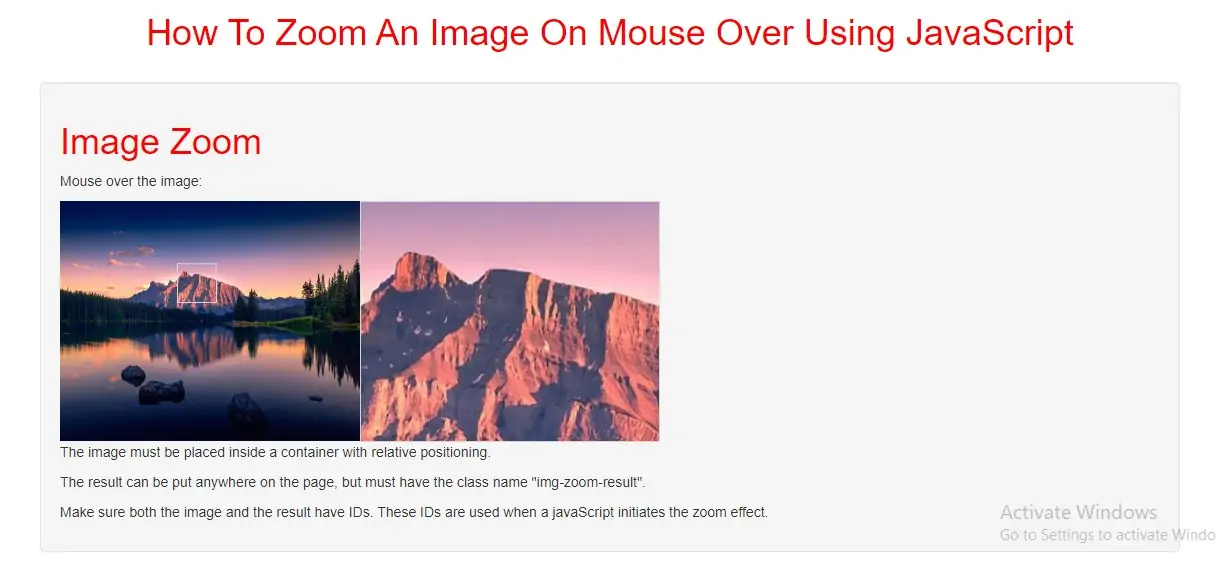
Create an Image Zoom
Step 1: Create index.html file and implement below code in it.
<div class="img-zoom-container " style="display: flex">
    <img id="image" src="../image/demo4.jpg" width="300" height="240">
    <div id="result" class="img-zoom-result"></div>
</div>
Step 2:Now we create css code to display zoomed image so implement below code in index.html file
The container must have a "relative" positioning.
<style>
    h1 {
        color: red;
    }
    * {box-sizing: border-box;}

    .img-zoom-container {
        position: relative;
    }

    .img-zoom-lens {
        position: absolute;
        border: 1px solid #d4d4d4;
        /*set the size of the lens:*/
        width: 40px;
        height: 40px;
    }

    .img-zoom-result {
        border: 1px solid #d4d4d4;
        /*set the size of the result div:*/
        width: 300px;
        height: 241px;
    }
</style>
Step 3:Now we implement javascript to zoom image.
<script>
    function imageZoom(imgID, resultID) {
        var img, lens, result, cx, cy;
        img = document.getElementById(imgID);
        result = document.getElementById(resultID);
        /*create lens:*/
        lens = document.createElement("DIV");
        lens.setAttribute("class", "img-zoom-lens");
        /*insert lens:*/
        img.parentElement.insertBefore(lens, img);
        /*calculate the ratio between result DIV and lens:*/
        cx = result.offsetWidth / lens.offsetWidth;
        cy = result.offsetHeight / lens.offsetHeight;
        /*set background properties for the result DIV:*/
        result.style.backgroundImage = "url('" + img.src + "')";
        result.style.backgroundSize = (img.width * cx) + "px " + (img.height * cy) + "px";
        /*execute a function when someone moves the cursor over the image, or the lens:*/
        lens.addEventListener("mousemove", moveLens);
        img.addEventListener("mousemove", moveLens);
        /*and also for touch screens:*/
        lens.addEventListener("touchmove", moveLens);
        img.addEventListener("touchmove", moveLens);
        function moveLens(e) {
            var pos, x, y;
            /*prevent any other actions that may occur when moving over the image:*/
            e.preventDefault();
            /*get the cursor's x and y positions:*/
            pos = getCursorPos(e);
            /*calculate the position of the lens:*/
            x = pos.x - (lens.offsetWidth / 2);
            y = pos.y - (lens.offsetHeight / 2);
            /*prevent the lens from being positioned outside the image:*/
            if (x > img.width - lens.offsetWidth) {x = img.width - lens.offsetWidth;}
            if (x < 0) {x = 0;}
            if (y > img.height - lens.offsetHeight) {y = img.height - lens.offsetHeight;}
            if (y < 0) {y = 0;}
            /*set the position of the lens:*/
            lens.style.left = x + "px";
            lens.style.top = y + "px";
            /*display what the lens "sees":*/
            result.style.backgroundPosition = "-" + (x * cx) + "px -" + (y * cy) + "px";
        }
        function getCursorPos(e) {
            var a, x = 0, y = 0;
            e = e || window.event;
            /*get the x and y positions of the image:*/
            a = img.getBoundingClientRect();
            /*calculate the cursor's x and y coordinates, relative to the image:*/
            x = e.pageX - a.left;
            y = e.pageY - a.top;
            /*consider any page scrolling:*/
            x = x - window.pageXOffset;
            y = y - window.pageYOffset;
            return {x : x, y : y};
        }
    }
</script>
<script>
    // Initiate zoom effect:
    imageZoom("image", "result");
</script>
<!DOCTYPE html>
<html>
<head>
    <title>How To Zoom An Image On Mouse Over Using JavaScript</title>
    <meta charset="utf-8">
    <meta name="viewport" content="width=device-width, initial-scale=1">
    <link rel="stylesheet" href="https://maxcdn.bootstrapcdn.com/bootstrap/3.4.1/css/bootstrap.min.css">
</head>
<style>
    h1 {
        color: red;
    }

    * {
        box-sizing: border-box;
    }

    .img-zoom-container {
        position: relative;
    }

    .img-zoom-lens {
        position: absolute;
        border: 1px solid #d4d4d4;
        /*set the size of the lens:*/
        width: 40px;
        height: 40px;
    }

    .img-zoom-result {
        border: 1px solid #d4d4d4;
        /*set the size of the result div:*/
        width: 300px;
        height: 241px;
    }
</style>
<script>
    function imageZoom(imgID, resultID) {
        var img, lens, result, cx, cy;
        img = document.getElementById(imgID);
        result = document.getElementById(resultID);
        /*create lens:*/
        lens = document.createElement("DIV");
        lens.setAttribute("class", "img-zoom-lens");
        /*insert lens:*/
        img.parentElement.insertBefore(lens, img);
        /*calculate the ratio between result DIV and lens:*/
        cx = result.offsetWidth / lens.offsetWidth;
        cy = result.offsetHeight / lens.offsetHeight;
        /*set background properties for the result DIV:*/
        result.style.backgroundImage = "url('" + img.src + "')";
        result.style.backgroundSize = (img.width * cx) + "px " + (img.height * cy) + "px";
        /*execute a function when someone moves the cursor over the image, or the lens:*/
        lens.addEventListener("mousemove", moveLens);
        img.addEventListener("mousemove", moveLens);
        /*and also for touch screens:*/
        lens.addEventListener("touchmove", moveLens);
        img.addEventListener("touchmove", moveLens);

        function moveLens(e) {
            var pos, x, y;
            /*prevent any other actions that may occur when moving over the image:*/
            e.preventDefault();
            /*get the cursor's x and y positions:*/
            pos = getCursorPos(e);
            /*calculate the position of the lens:*/
            x = pos.x - (lens.offsetWidth / 2);
            y = pos.y - (lens.offsetHeight / 2);
            /*prevent the lens from being positioned outside the image:*/
            if (x > img.width - lens.offsetWidth) {
                x = img.width - lens.offsetWidth;
            }
            if (x < 0) {
                x = 0;
            }
            if (y > img.height - lens.offsetHeight) {
                y = img.height - lens.offsetHeight;
            }
            if (y < 0) {
                y = 0;
            }
            /*set the position of the lens:*/
            lens.style.left = x + "px";
            lens.style.top = y + "px";
            /*display what the lens "sees":*/
            result.style.backgroundPosition = "-" + (x * cx) + "px -" + (y * cy) + "px";
        }

        function getCursorPos(e) {
            var a, x = 0, y = 0;
            e = e || window.event;
            /*get the x and y positions of the image:*/
            a = img.getBoundingClientRect();
            /*calculate the cursor's x and y coordinates, relative to the image:*/
            x = e.pageX - a.left;
            y = e.pageY - a.top;
            /*consider any page scrolling:*/
            x = x - window.pageXOffset;
            y = y - window.pageYOffset;
            return {x: x, y: y};
        }
    }
</script>
<body>
<div class="container">
    <br>
    <br>
    <div class="text-center">
        <h1>How To Zoom An Image On Mouse Over Using JavaScript</h1>
    </div>
    <br>
    <div class="well">
        <h1>Image Zoom</h1>

        <p>Mouse over the image:</p>

        <div class="img-zoom-container " style="display: flex">
            <img id="image" src="../image/demo4.jpg" width="300" height="240">
            <div id="result" class="img-zoom-result"></div>
        </div>

        <p>The image must be placed inside a container with relative positioning.</p>
        <p>The result can be put anywhere on the page, but must have the class name "img-zoom-result".</p>
        <p>Make sure both the image and the result have IDs. These IDs are used when a javaScript initiates the zoom
            effect.</p>

        <script>
            // Initiate zoom effect:
            imageZoom("image", "result");
        </script>
    </div>
    <div>
</body>
</html>